
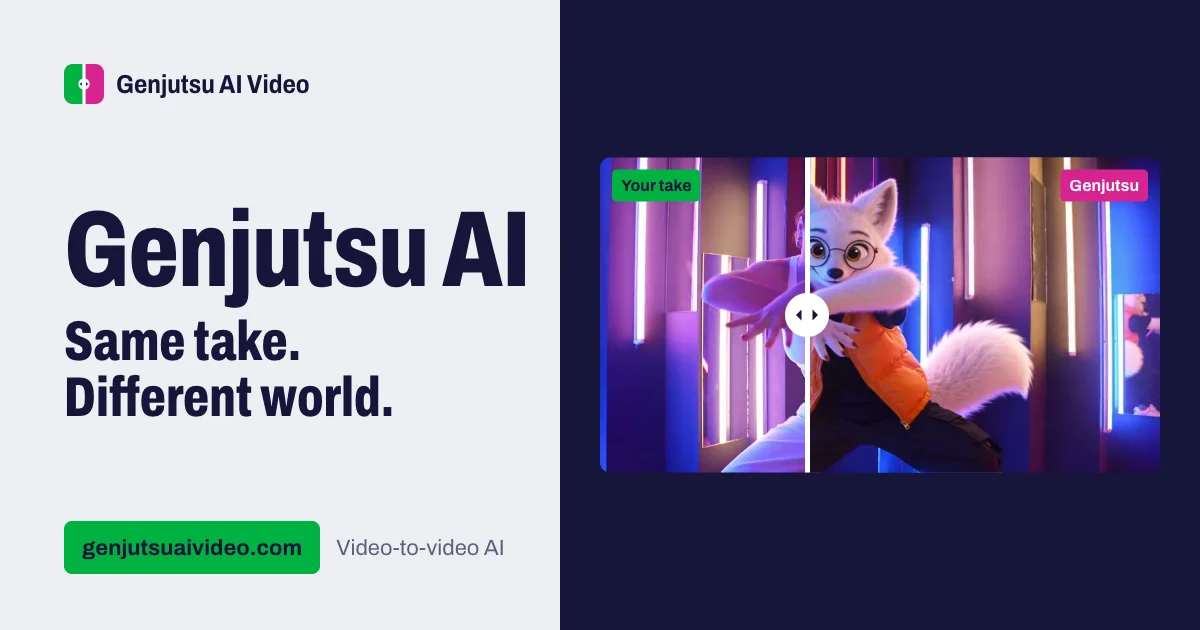
Genjutsu AI is an online video-to-video editor for people who have a clip but want to change what appears in it. You upload a source video, describe the edit in a prompt, and can add reference images for the subject or style you want. It is aimed at creators testing character changes, outfits, product shots, motion transfer or visual restyles without rebuilding the scene from scratch. The starting point is an existing clip: the tool works from its footage and movement rather than asking you to assemble a video on a timeline.
What can Genjutsu AI do?
The editor offers three effects: Swap changes a subject, Motion transfer applies movement to a different subject, and Restyle changes the clip’s visual treatment. You can use a text prompt to describe the intended change and add reference images where the effect supports them. The two editing modes have different allowances: Pro accepts more reference images and offers more restyle presets, while Standard has a smaller set of built-in styles. The choice matters if your edit needs several visual references or a particular preset.
- Trim a clip before upload, or convert a MOV or WebM file to MP4 in the browser.
- Open an example with its sample clip, references and prompt already loaded into the editor.
- Use Improve prompt while signed in to rewrite a draft prompt, subject to a daily use limit.
- See the generation credit cost on the Generate button before submitting a clip.
Credit charges depend on clip length rounded up to whole seconds. An example can help you inspect how a prompt and references fit together before replacing the sample material with your own. For a new edit, the practical workflow is to prepare the source clip, select an effect and mode, add any references, then check the displayed cost before generating.
Who is Genjutsu AI best for?
Genjutsu AI suits someone who already has footage and wants to test a specific change to it: placing a different character in a shot, trying another outfit or product, carrying movement into a new subject, or giving the clip another visual style. The example library is useful if you would rather start with a demonstrated setup than write a prompt without a reference. Choose it for short, prompted changes to source footage, not because you expect every detail of the original frame to remain untouched.
Genjutsu AI pricing in brief
Genjutsu AI sells generation credits through a one-time purchase and recurring subscriptions; it does not provide a free render tier or free sign-up credits. Subscription options carry different credit allocations, and unused subscription credits expire at the end of their cycle. Because the editor displays the cost before submission, you can check how many credits a clip requires before committing to a render.
Limitations to know about Genjutsu AI
Clip requirements vary by mode and effect. Pro accepts clips from four to thirty seconds up to 200 MB, while Standard accepts four to fifteen seconds; Standard Swap and Motion transfer require at least 720p source footage, whereas Pro accepts footage from 480p. Outputs are described as 480p or 720p, not 1080p. A render may change faces, hands, backgrounds or framing even when a prompt asks to preserve them. Failed or provider-blocked renders return generation credits, but a completed render remains charged if you dislike the result. Generated videos are stored for at least ninety days; older ones may be removed.
Alternatives to Genjutsu AI
If your main question is which tool fits your video workflow, compare CapCut when weighing another approach to clip editing and Google Veo when weighing another approach to video generation. Use Genjutsu AI’s source-clip requirements, reference-image workflow and credit cost as concrete points of comparison. These links are starting points for evaluating alternatives, not a claim that their editing steps or pricing match Genjutsu AI’s.


